TPC Audio & Video Instructions
The password for all the Mac computers in the building is 11911
Audio Instructions
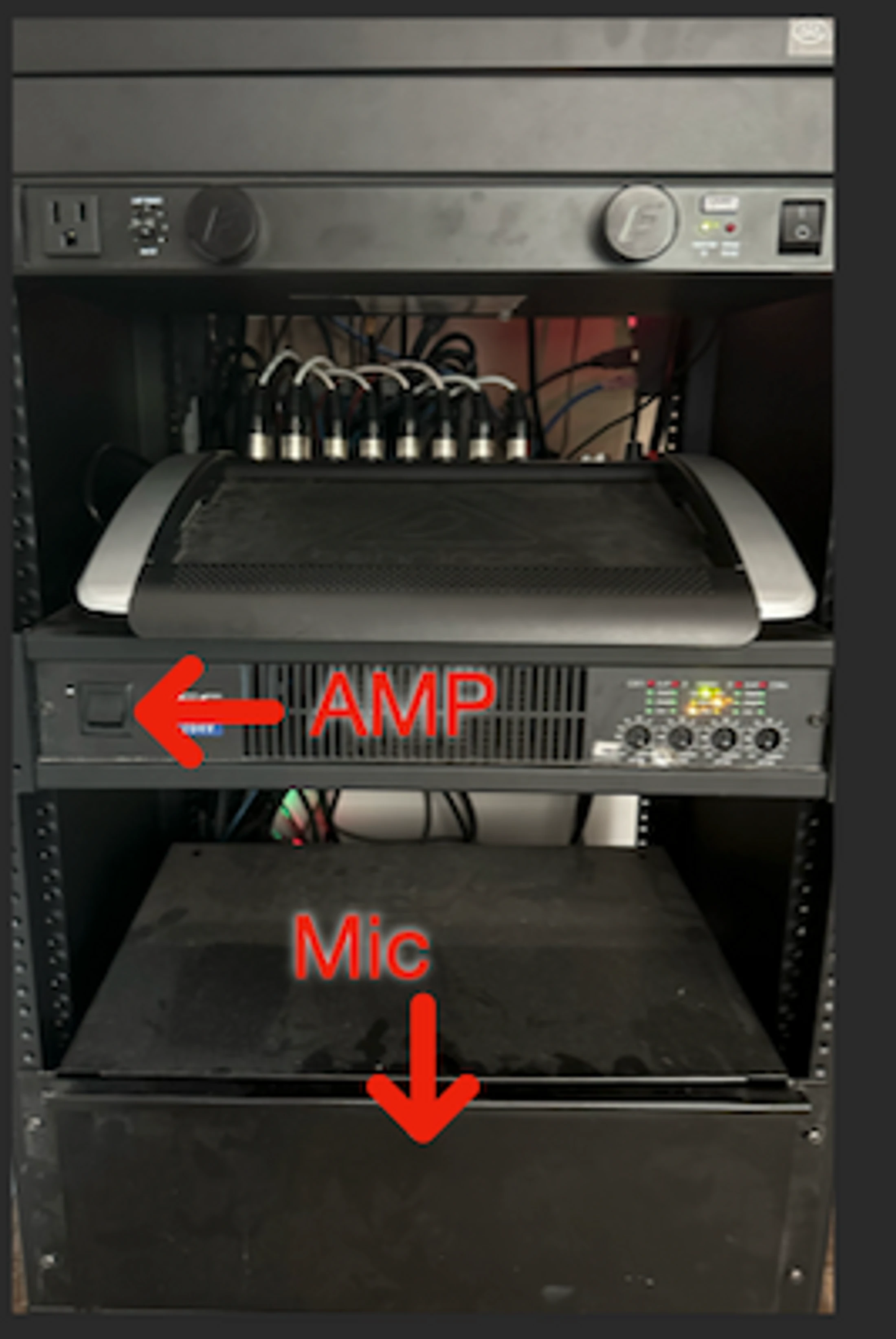
1) Turn on the "AMP POWER".
2) PRESS Ctrl and either left or right until the screen with Spotify and X-Air appears.
3) The X-Air application controls the audio. If the volume does not change when changing
the fader, follow the following steps...
a) Click"Setup" in the upper right side of the screen.
b) Click "Connect" on the screen that opens up.
c) Click "PC to Mixer" on the screen that opens and then "Continue".
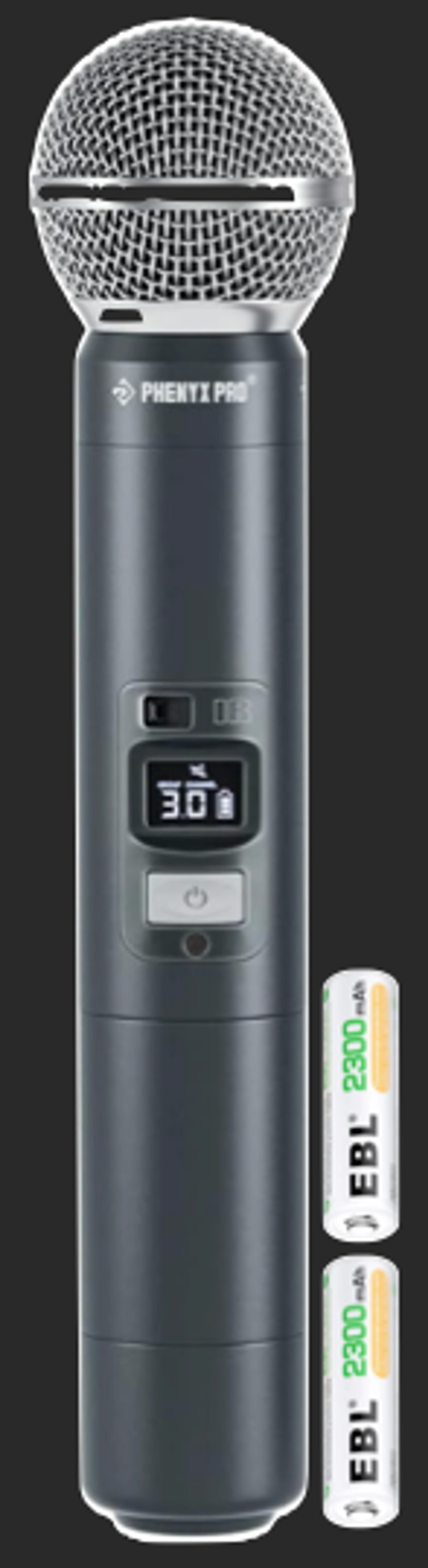
4) The wireless microphones are in the drawer below the amplifier.
5) The microphone batteries are in the charger on the top of the rack.
6) Please remove the batteries after your event and place in the charger.
7) Turn off the "AMP POWER".
2) PRESS Ctrl and either left or right until the screen with Spotify and X-Air appears.
3) The X-Air application controls the audio. If the volume does not change when changing
the fader, follow the following steps...
a) Click"Setup" in the upper right side of the screen.
b) Click "Connect" on the screen that opens up.
c) Click "PC to Mixer" on the screen that opens and then "Continue".
4) The wireless microphones are in the drawer below the amplifier.
5) The microphone batteries are in the charger on the top of the rack.
6) Please remove the batteries after your event and place in the charger.
7) Turn off the "AMP POWER".
8) Return the microphones to the drawer.
TV Instructions
1) Turn on the TV's with the remotes from the righthand drawer below the monitors .
2) HDMI 1 is for using Youtube in a browser or using Propresenter.
2) HDMI 1 is for using Youtube in a browser or using Propresenter.
3) HDMI 2 is for using ABLESIGN.
4) To access ABLESIGN follow these steps...
a) Select HDMI 2.
b) Using the Amazon remotes, select the ABLESIGN app and press OK.
5) Please replace the remotes in the drawer when finished.